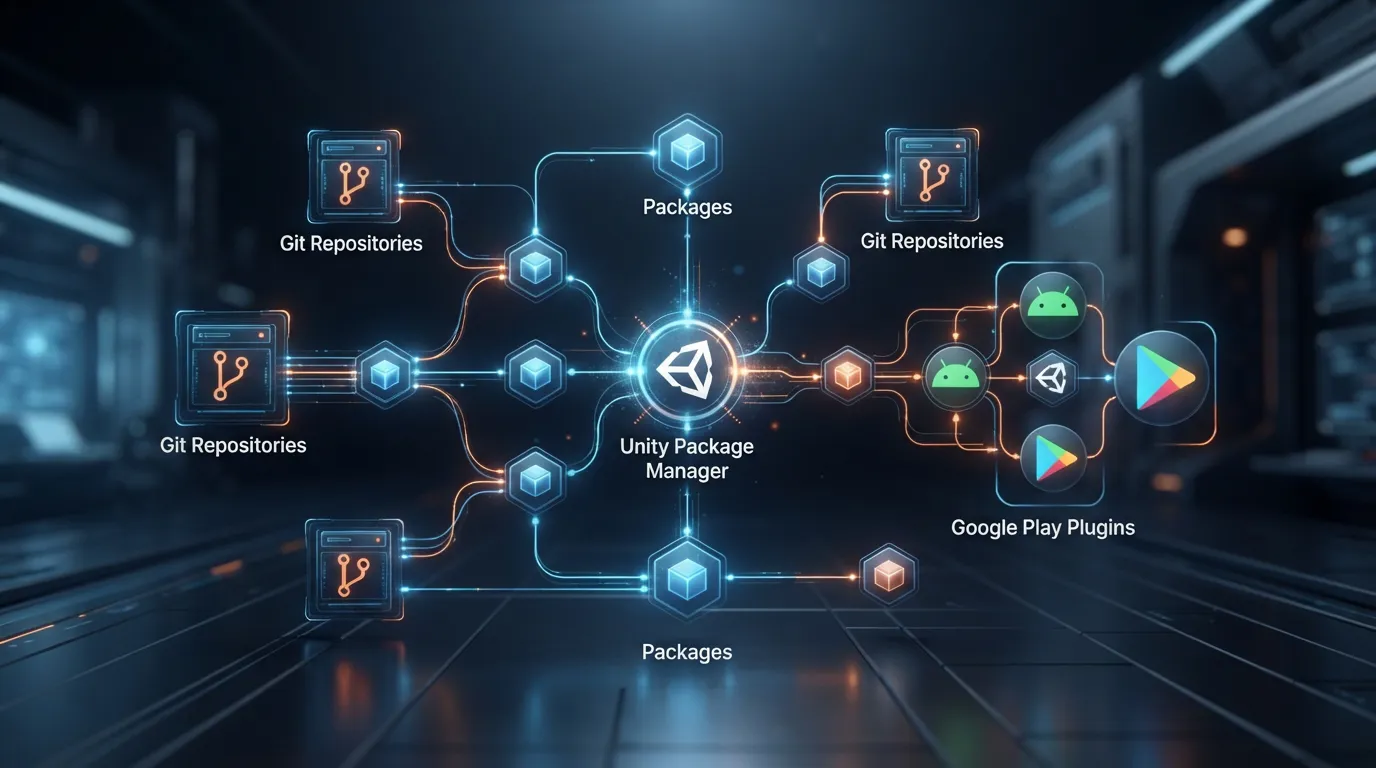
Google Play Unity Plugins: Install From the New Git Repos
Google split the Google Play Unity plugins into separate Git repositories. Here are the correct ?path= URLs, the dependency chain, and how to migrate off OpenUPM.
Introduction
Google changed the way its Google Play Unity plugins are distributed. The old monolithic google/play-unity-plugins repository, which used to bundle several plugins together, has been split into individual repositories. New versions are published per-plugin, and you install them straight from Git using the Unity Package Manager (UPM).
The migration itself is simple once the repository layout clicks — but a couple of details trip up almost everyone and produce confusing UPM errors like package.json cannot be found or a Windows EPERM rename failure.
In this guide you will learn:
- What actually changed with the Google Play Unity plugins
- Manual
.unitypackageinstall vs. Git install, and why Git usually wins - The correct Git URLs, including why
?path=is mandatory - How the dependency chain between Common, Core, EDM4U and In-App Review works
- How to migrate an existing project away from OpenUPM
- How
packages-lock.jsonfits into the picture - How to fix
Repository does not contain a package manifestand WindowsEPERM - A ready-to-use prompt so an AI coding agent can do the migration for you
Every URL and version number below reflects the current package manifests at the time of writing. Always open the package's own
package.jsonto confirm before pinning.
The Problem: The Package Is Not at the Repository Root
Previously, several plugins lived in one repository:
google/play-unity-plugins
The new model uses one repository per plugin:
Google Play Common     https://github.com/google/play-common-unity
Google Play Core       https://github.com/google/play-core-unity
Google Play In-App Review  https://github.com/google/play-in-app-reviews-unity
External Dependency Manager for Unity  https://github.com/googlesamples/unity-jar-resolver
Here is the catch. When you point UPM at a Git URL, Unity clones the repository and looks for a manifest at:
repository-root/package.json
But Google Play Common keeps its package inside a subdirectory:
com.google.play.common/package.json
So installing https://github.com/google/play-common-unity.git fails with:
Repository does not contain a package manifest:
The file .../clone/package.json cannot be found
The repository is perfectly valid. The UPM package just isn't at the root.
The Solution: The ?path= Query Parameter
?path= tells Unity which subdirectory to treat as the package. Instead of:
https://github.com/google/play-common-unity.git
use:
https://github.com/google/play-common-unity.git?path=com.google.play.common
That reads as: clone this repository, but treat com.google.play.common as the UPM package. Its package.json identifies it as com.google.play.common, currently version 1.9.2.
The same rule applies to every Google Play repository — only the subfolder name changes.
Manual Install vs. Git Install
Option 1 — Manual .unitypackage
Google still ships .unitypackage files on the GitHub Releases pages. Download one, import it, done. It works, but the cost is maintenance:
.unitypackage → Assets/
The plugin becomes part of your project files instead of being managed by UPM. Updating later means finding the new release, importing it, reconciling existing files, deleting stale ones, and checking for duplicate assemblies and dependency conflicts every single time.
Option 2 — Install From Git (recommended)
If your project already uses UPM, install straight from the official Git repositories:
https://github.com/google/play-in-app-reviews-unity.git?path=com.google.play.review
Advantages:
- The install is fully described in
Packages/manifest.json - The package stays out of your
Assetsfolder - Transitive dependencies are declared by the package manifests
- The setup reproduces cleanly on another machine or in CI/CD
- An AI coding agent can modify the project deterministically
The Correct Git URLs
Google Play Common
https://github.com/google/play-common-unity.git?path=com.google.play.common
Version-pinned:
https://github.com/google/play-common-unity.git?path=com.google.play.common#v1.9.2
{
    "name": "com.google.play.common",
    "version": "1.9.2"
}
Google Play Core
https://github.com/google/play-core-unity.git?path=com.google.play.core
Version-pinned:
https://github.com/google/play-core-unity.git?path=com.google.play.core#v1.8.6
{
    "name": "com.google.play.core",
    "version": "1.8.6"
}
Google Play In-App Review
https://github.com/google/play-in-app-reviews-unity.git?path=com.google.play.review
Version-pinned:
https://github.com/google/play-in-app-reviews-unity.git?path=com.google.play.review#v1.8.4
{
    "name": "com.google.play.review",
    "version": "1.8.4"
}
External Dependency Manager for Unity (EDM4U)
EDM4U has a different layout — its UPM package lives in upm/:
https://github.com/googlesamples/unity-jar-resolver.git?path=upm
The current manifest identifies it as com.google.external-dependency-manager, version 1.2.189.
The Dependency Chain
The most common migration mistake is installing every package independently and upgrading each to its newest version. That ignores what each package actually requires.
For In-App Review, the chain looks like this:
Google Play In-App Review
    ├── Google Play Common
    └── Google Play Core
            └── External Dependency Manager for Unity
More precisely, the current In-App Review package declares:
com.google.play.common = 1.9.2
com.google.play.core   = 1.8.6
And the current Play Core package declares:
com.google.external-dependency-manager = 1.2.185
Installing EDM4U
1.2.189just because it is newer is not automatically correct for this graph. Play Core asks for1.2.185. Treat the package metadata as the source of truth, not "latest".
💡 Let Unity resolve the graph
If your project only needs In-App Review, do not add Common, Core and EDM4U by hand. Add only com.google.play.review and let UPM pull in exactly the versions its manifest declares. Fewer explicit entries means fewer version conflicts to babysit.
The Easiest Way to Install In-App Review
Add a single dependency:
https://github.com/google/play-in-app-reviews-unity.git?path=com.google.play.review
Unity resolves the rest:
com.google.play.review
    → com.google.play.common
    → com.google.play.core
    → com.google.external-dependency-manager
That is far cleaner than manually managing four packages.
What About the Other Google Play Plugins?
The same ?path= concept applies to every Google Play Unity package. Google maintains separate repositories for features such as:
- In-App Review
- In-App Updates
- Play Integrity
- Play Asset Delivery
- Play Core
- Play Common
Install the feature package your game actually uses and let its declared dependencies resolve. If you only need In-App Review, there is no reason to add every Google Play package to your manifest.
Migrating an Existing Project From OpenUPM
Older projects often pulled these packages through OpenUPM. Your manifest.json might contain:
{
    "dependencies": {
        "com.google.play.review": "1.8.4",
        "com.google.play.core": "1.8.6",
        "com.google.play.common": "1.9.2",
        "com.google.external-dependency-manager": "1.2.185"
    }
}
Plus a scoped registry:
{
    "name": "OpenUPM",
    "url": "https://package.openupm.com",
    "scopes": [
        "com.google"
    ]
}
If you move to Git but leave the OpenUPM com.google scope in place, Unity can resolve those packages through the registry instead of your Git URL. Remove the conflicting scope.
Step 1: Back up first
Copy these before touching anything:
Packages/manifest.json
Packages/packages-lock.json
ProjectSettings/
Assets/
Step 2: Identify the Google packages
Search Packages/manifest.json, Packages/packages-lock.json and Assets/ for:
com.google.play
com.google.external-dependency-manager
Step 3: Remove the old OpenUPM Google dependencies
Delete only the Google entries that Git will replace:
com.google.play.review
com.google.play.core
com.google.play.common
com.google.external-dependency-manager
Leave unrelated OpenUPM packages alone. If other packages still use the OpenUPM registry, keep the registry and only drop the com.google scope.
Step 4: Check Assets/ for duplicate plugin copies
This step matters. Some projects have the plugins installed via .unitypackage and via UPM at the same time, so you end up with both:
Assets/GooglePlayPlugins/
Packages/com.google.play.core/
That produces errors like Assembly already exists, The type X exists in both assemblies, or duplicate GUID conflicts. Remove the stray Assets/ copies before switching to Git — but only after confirming nothing else depends on them.
Step 5: Close Unity completely
Close Unity, and for a serious package migration also close Unity Hub, Visual Studio and JetBrains Rider. This avoids a Windows process keeping files inside Library locked.
Step 6: Deal with the Library folder
Library/ is generated data. If Package Manager is stuck in a bad state, it is safe to delete Library/ and let Unity rebuild it. Never delete Assets/, Packages/ or ProjectSettings/.
Step 7: Install the feature package
For an In-App Review project:
https://github.com/google/play-in-app-reviews-unity.git?path=com.google.play.review
Do not add Common and Core manually unless you have a concrete reason.
Step 8: Let Unity resolve and verify
Open Window → Package Manager and confirm the Google packages are present, then inspect Packages/packages-lock.json to see exactly what Unity resolved.
Understanding packages-lock.json
packages-lock.json matters even more with Git packages. Even when your manifest holds a Git URL, Unity records the resolved revision in the lock file:
manifest.json
    → Git dependency
    → Package Manager resolves a revision
    → packages-lock.json
When you diagnose an update problem, always read both manifest.json and packages-lock.json. Changing the URL alone does not tell you what Unity is actually using.
Should You Use Git URLs Without a Tag?
You can:
https://github.com/google/play-in-app-reviews-unity.git?path=com.google.play.review
This tracks the repository's default branch. But an untagged URL does not mean "download the newest version on every startup" — Unity still resolves and locks a revision in packages-lock.json. It only means you follow the current development line rather than a specific release.
For production, pin a tag:
https://github.com/google/play-in-app-reviews-unity.git?path=com.google.play.review#v1.8.4
For a hobby or development project where convenience wins, the untagged branch is acceptable.
When Should You Declare Common, Core or EDM4U Explicitly?
There are legitimate cases:
- Your project uses several Google Play plugins
- Another package needs Play Core
- You need a specific EDM4U version
- Your build system requires an explicit package entry
- You are debugging a dependency-resolution problem
In those cases, use the proper paths:
https://github.com/google/play-common-unity.git?path=com.google.play.common
https://github.com/google/play-core-unity.git?path=com.google.play.core
https://github.com/googlesamples/unity-jar-resolver.git?path=upm
Always read the package's own package.json before overriding a transitive version.
Fixing the Two Errors You Will Actually Hit
Repository does not contain a package manifest
Cause: the Git URL points at the repository root, but the package.json is in a subdirectory. Fix: add the correct ?path= parameter before trying anything else.
# Wrong
https://github.com/google/play-common-unity.git

# Right
https://github.com/google/play-common-unity.git?path=com.google.play.common
Windows error code [EPERM]
Failed to rename [...] to [...]
error code [EPERM]
This is not a Git URL problem. EPERM means the OS refused an operation because a file or directory is locked. Common culprits: Unity still running, the Package Manager cache in use, IDE file indexing, antivirus, Windows Search indexing, a stale temp package directory, or directory permissions.
Recovery procedure:
1. Close Unity
2. Close Unity Hub
3. Close Rider / Visual Studio
4. Confirm no Unity process remains
5. Delete Library/
6. Restart Unity and let it rebuild Library
7. Retry the Git package
Do not change the Git URL when the error is EPERM — the two problems are unrelated.
Automating the Migration With an AI Coding Agent
Most of this migration is deterministic, which makes it a good fit for an AI agent — as long as the agent inspects the project first instead of blindly replacing strings. Here is a prompt you can hand it:
You are modifying an existing Unity project.

Task: migrate Google Play Unity plugins from OpenUPM / legacy installs to the
official Git-based Google repositories.

IMPORTANT: inspect before you change anything.

1. Read Packages/manifest.json and Packages/packages-lock.json.
2. Search the project for: com.google.play, com.google.external-dependency-manager,
   GooglePlayPlugins, ExternalDependencyManager.
3. Determine how the plugins are currently installed (OpenUPM, Git URLs,
   .unitypackage, Assets/, UPM).
4. Back up Packages/manifest.json and Packages/packages-lock.json.
5. Remove ONLY the old Google Play package definitions that are being replaced.
   Do not remove unrelated packages.
6. Remove the "com.google" scope from the OpenUPM scoped registry only if it is
   present and no longer needed.
7. Check Assets/ for duplicated plugin copies (Assets/GooglePlayPlugins/,
   Assets/ExternalDependencyManager/). Report findings; do not auto-delete if it
   is unclear whether something depends on them.
8. Use the official Git repositories:
   Common:  https://github.com/google/play-common-unity.git?path=com.google.play.common
   Core:    https://github.com/google/play-core-unity.git?path=com.google.play.core
   Review:  https://github.com/google/play-in-app-reviews-unity.git?path=com.google.play.review
   EDM4U:   https://github.com/googlesamples/unity-jar-resolver.git?path=upm
9. Prefer installing only the feature package the project actually needs. If it
   only needs In-App Review, add just the review package and let transitive
   dependencies resolve.
10. Read the package.json of every Google package involved and respect its
    declared dependency versions. Do not blindly upgrade transitive dependencies.
11. Preserve the project's Unity version and all unrelated package versions.
12. Do not upgrade Unity.
13. Do not replace working packages just because newer versions exist.
14. Ensure manifest.json is valid JSON after editing.
15. If packages-lock.json is stale or conflicting, delete it only after backup and
    let Unity regenerate it.
16. Do not hand-edit generated Library files.
17. If install fails with "Repository does not contain a package manifest",
    verify the "?path=" parameter before trying anything else.
18. If install fails with "error code [EPERM]", treat it as a local Windows
    file-lock/cache issue: recommend closing Unity/IDE processes and rebuilding
    Library/.
19. Final report: packages removed, Git packages added, which dependencies are
    transitive, versions Unity resolved, remaining duplicate installs, potential
    conflicts.

Do not make unrelated project changes.
Best Practice for CI/CD
Git-based UPM packages shine in automated builds. A CI environment reads Packages/manifest.json and fetches the dependencies with no developer manually importing .unitypackage files. For production builds, pin release tags rather than following a moving branch:
# Reproducible
https://github.com/google/play-in-app-reviews-unity.git?path=com.google.play.review#v1.8.4

# Moving target
https://github.com/google/play-in-app-reviews-unity.git?path=com.google.play.review
Results: The Recommended Final Setup
For a Unity project whose only Google Play feature is In-App Review:
Your Unity Project
├── Assets/
├── Packages/
│   ├── manifest.json
│   └── packages-lock.json
└── ProjectSettings/
With one feature dependency in manifest.json:
{
    "dependencies": {
        "com.google.play.review": "https://github.com/google/play-in-app-reviews-unity.git?path=com.google.play.review#v1.8.4"
    }
}
Resolving to:
com.google.play.review
    ├── com.google.play.common
    └── com.google.play.core
            └── com.google.external-dependency-manager
Conclusion
Moving from the old bundled repository to per-plugin Git repositories is not hard, but it changes one important habit: you can no longer assume a Git repo installs from its root. Google's repositories keep their UPM packages in subdirectories, so Unity needs the right ?path= parameter.
For most projects — especially when the immediate need is Google Play In-App Review — the simplest correct setup is to install just the feature package:
com.google.play.review
and let Unity Package Manager resolve the dependencies declared by Google's manifests. Manual .unitypackage installs still work, but Git-based UPM gives you a cleaner, reproducible, automation-friendly project.
The short version: use the official Git repositories, use the correct ?path= parameter, respect the dependency versions Google declares, and let the Package Manager own the dependency graph.
If you are hitting a Google Play plugin error this guide doesn't cover, leave a comment or reach out — happy to help track it down. And if you're also working through a Unity engine upgrade, my write-up on migrating InstanceID to EntityId in Unity 6000.5 covers another migration full of the same "looks like a rename, isn't just a rename" traps.
FAQ
Why does installing a Google Play Unity plugin from Git fail with "Repository does not contain a package manifest"?
Because the Git URL points at the repository root, but Google keeps the UPM package inside a subdirectory such as com.google.play.common. Unity looks for package.json at the root and does not find it. Add the ?path= query parameter pointing at the correct subfolder, for example ?path=com.google.play.common.
What are the correct Git URLs for the Google Play Unity plugins?
Common: https://github.com/google/play-common-unity.git?path=com.google.play.common. Core: https://github.com/google/play-core-unity.git?path=com.google.play.core. In-App Review: https://github.com/google/play-in-app-reviews-unity.git?path=com.google.play.review. External Dependency Manager: https://github.com/googlesamples/unity-jar-resolver.git?path=upm.
Do I need to install Google Play Common and Core manually for In-App Review?
Usually not. The In-App Review package declares its dependencies on Common and Core, and Core declares its dependency on the External Dependency Manager. Add only com.google.play.review and let Unity Package Manager resolve the chain with the versions each manifest declares.
Should I use a version tag or track the branch for Google Play Git packages?
For production, pin a tag such as v1.8.4 so the dependency version is explicit and reproducible in CI/CD. An untagged URL tracks the default branch but still locks a resolved revision in packages-lock.json; it does not re-download the newest version on every editor start.
How do I fix the Windows "error code [EPERM]" when installing a Git package in Unity?
EPERM is a local file-lock problem, not a Git URL problem. Close Unity, Unity Hub and your IDE, make sure no Unity process is running, delete the Library/ folder, restart Unity to let it rebuild, then retry the package. Do not change the Git URL for this error.
Why shouldn't I upgrade every Google Play package to its newest version?
Because "latest" is not the same as "compatible". The current In-App Review package asks for Play Common 1.9.2 and Play Core 1.8.6, and Play Core asks for EDM4U 1.2.185 — not the newer 1.2.189. Treat each package's package.json as the source of truth and let transitive resolution pick the declared versions.

Comments
Have a question, or found an issue with the code? Drop a comment below — I read and reply to every one.