MAUI Forge is now 100% visual: meet the new open source dashboard that replaces the version script
Meet the new MAUI Forge: a 100% visual, open-source dashboard to manage .NET MAUI app versions, builds, and devices directly from your browser.
MAUI Forge is now 100% visual: meet the new open source dashboard that replaces the version script
If you've ever wasted half an hour of your day running a PowerShell script just to find out if Info.plist is synced with AndroidManifest.xml, you know exactly the problem MAUI Forge solves. And the latest version takes a leap: what started as a terminal script has become a complete visual command center and 100% open source to manage all your .NET MAUI apps — versions, builds, devices, Mac and PC, and Git — in one place, directly from your browser.
Let's see what's changed and why it's worth installing right now.
From PowerShell script to open source platform
MAUI Forge was born as maui-version.ps1, a ~2700-line script that handled versions and builds. It worked, but it required memorizing commands, running in one terminal at a time, and didn't scale well when you had a dozen apps scattered in different folders.
The rewrite in .NET 10 brought the same automation, wrapped in two interfaces — and with the entire source code open on GitHub:
- A TUI (interactive terminal) for those who live in the shell, built with Spectre.Console.
- A complete web dashboard, with Tailwind CSS and SignalR for real-time logs — and it's the default mode now.
And since it's open source, installing doesn't require cloning a repository or compiling anything. A single command via dotnet tool does the trick:
dotnet tool install -g CwSoftware.MauiForge
After that, just run:
maui-forge
The dashboard starts at http://localhost:5123 and that's it — no configuration needed. And the best part: MAUI Forge updates itself. It checks for the latest version on NuGet in the background and, when it finds an update, notifies you and lets you install it with one click — without interrupting what you're currently doing.
ℹ️ Still prefer the terminal?
TUI mode remains available with maui-forge --cli. Nothing was removed — it just gained a much richer visual alternative.
The main panel: all your apps at a glance
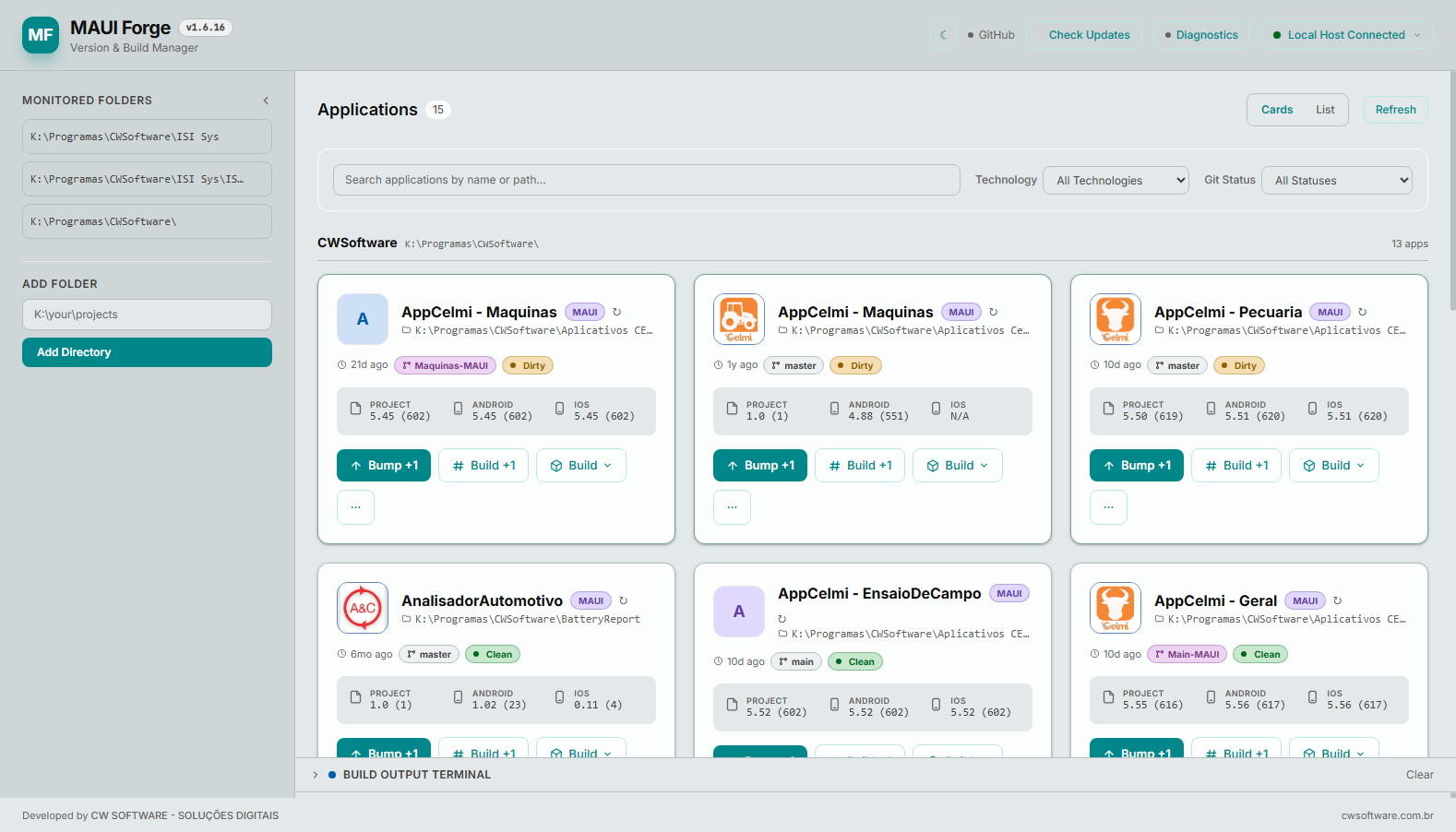
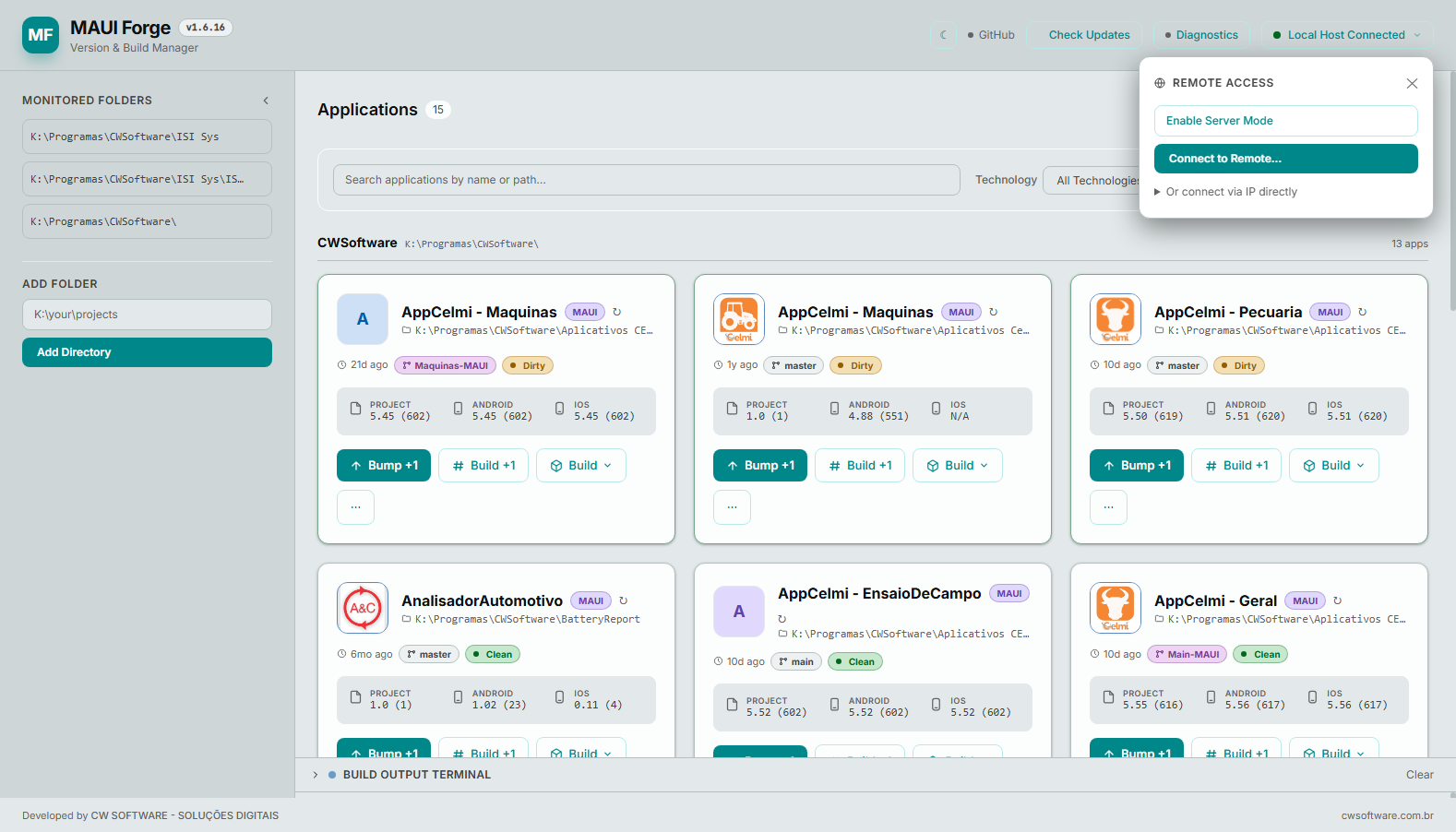
As soon as you open the dashboard, you see a mosaic with all monitored applications — name, technology, version of each platform, Git branch, and status, all in clean cards:
 !
!
Notice what each card already delivers without an extra click:
- Version and build number of Project, Android, and iOS side-by-side — if something is out of sync, you see it instantly.
- Git badge: current branch and
CleanorDirtystatus. - Action buttons directly on the card:
Bump +1(increments version and build),Build +1(build number only), and aBuildmenu with full options. - Last activity of the app ("21d ago", "10d ago"), so the most recent projects naturally rise to your attention.
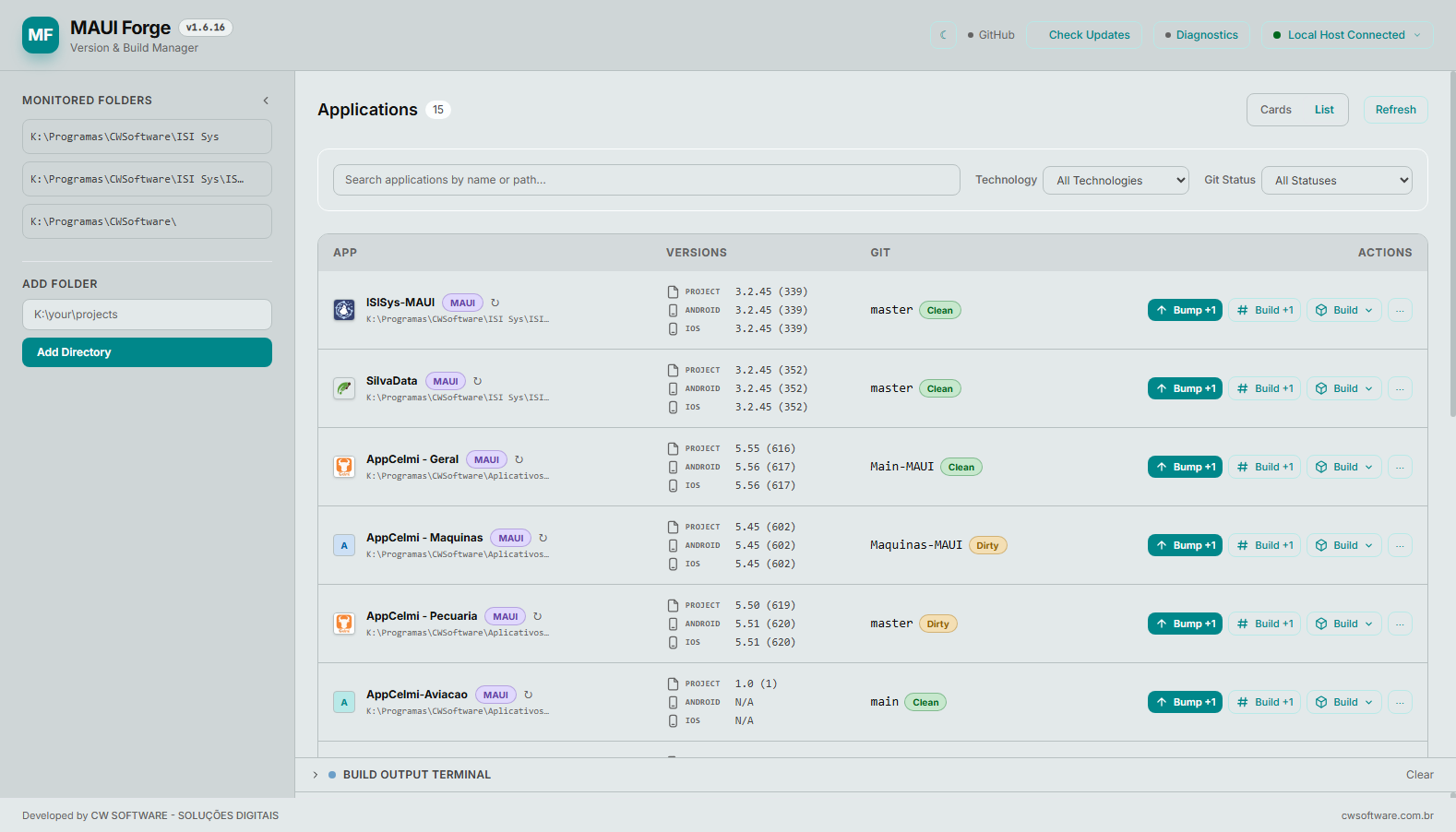
Don't like cards? One click switches to list view, denser and ideal when you have many projects open at the same time:
 !
!
It has search by name/path and filters by technology and Git status — in seconds you can isolate just the "Dirty" apps that need a commit, for example.
No more editing Info.plist and AndroidManifest by hand
This is, without exaggeration, one of the features that saves the most time in daily life — and perhaps the original reason MAUI Forge exists. Manually bumping the version of a MAUI app means opening (at least) three different files, carefully editing the numbers to avoid syntax errors, and hoping you don't forget any:
Info.pliston iOS, with its<key>CFBundleShortVersionString</key>XML syntaxAndroidManifest.xml, withandroid:versionNameandandroid:versionCode- The
.csproj, with<ApplicationDisplayVersion>and<ApplicationVersion>
MAUI Forge does this with one click:
Bump +1— increments the version and the build number in all platform files at the same time, keeping everything synchronized.Build +1— when you only need to increase the build number (for example, to resubmit to TestFlight without changing the public version), without touching the rest.- iOS ↔ Android synchronization — if versions get out of sync for any reason, one button fixes it.
- Snapshot and undo — if a bump goes wrong, you can undo the last version change without having to hunt through Git history.
✅ No typos, no broken XML
Each write is done directly to the file structure (Info.plist, AndroidManifest.xml, .csproj, AssemblyInfo.cs, or even Unity's ProjectSettings.asset), so there's no risk of accidentally saving a malformed XML.
Working simultaneously on PC and Mac
Here is perhaps the biggest pain for MAUI developers: iOS builds require a Mac, but your main work environment is usually Windows. This normally means configuring Pair to Mac in Visual Studio, fighting with certificates, losing patience with file synchronization, and eventually giving up on the flow and doing everything manually via SSH.
MAUI Forge solves this with server mode: you run MAUI Forge on the Mac (or any machine with the build toolchain), enable server mode, and connect from your PC:
 !
!
From there, the PC becomes a complete remote control for the Mac:
- You keep coding on the PC, in your usual editor.
- Commit and push normally — MAUI Forge takes care of keeping both repositories synchronized, so the Mac always builds the latest code.
- Trigger build and deploy on the iOS device or simulator directly from the dashboard open on the PC, without needing to physically touch the Mac.
- Choose between Release or Debug on the fly, without editing any configuration.
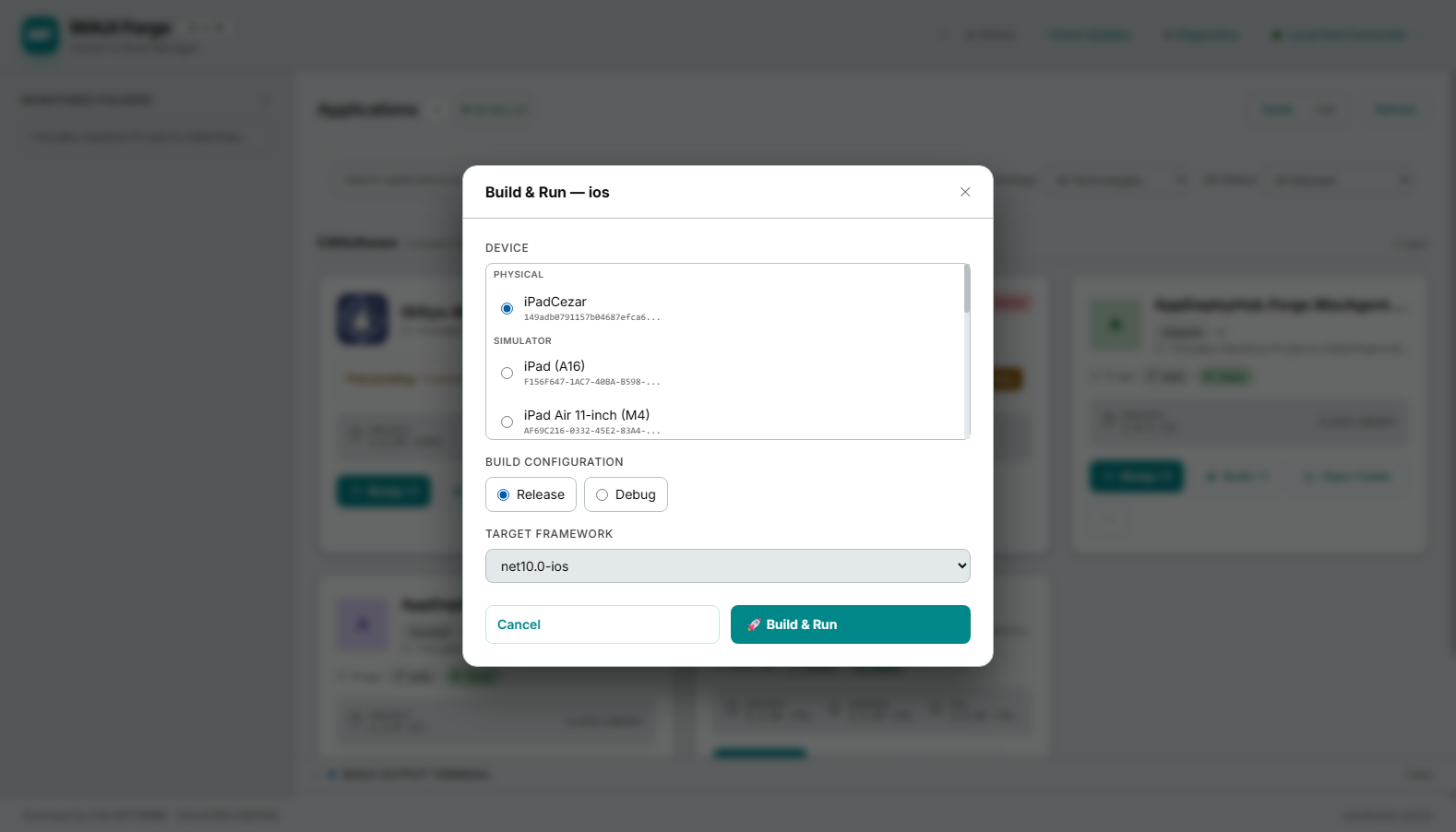
And the result becomes even more evident when you open Build & Run for an app on the remote Mac: the list of compatible devices appears automatically, physical devices and simulators side-by-side — here, for example, running SilvaData against the Mac connected at 192.168.3.29:

Notice that the physical iPad already appears identified (iPadCezar) alongside the available simulators (iPad, iPad Air 11-inch (M4), and others) — all automatically detected on the remote machine, without any manual SSH or certificate configuration done on the PC.
ℹ️ Built-in health monitoring
If the remote or local backend stops responding — crashes, is closed, the process goes down — the dashboard notices on its own and shows a clear warning with a retry option, instead of leaving you staring at blank pages.
Build & Run without leaving the browser
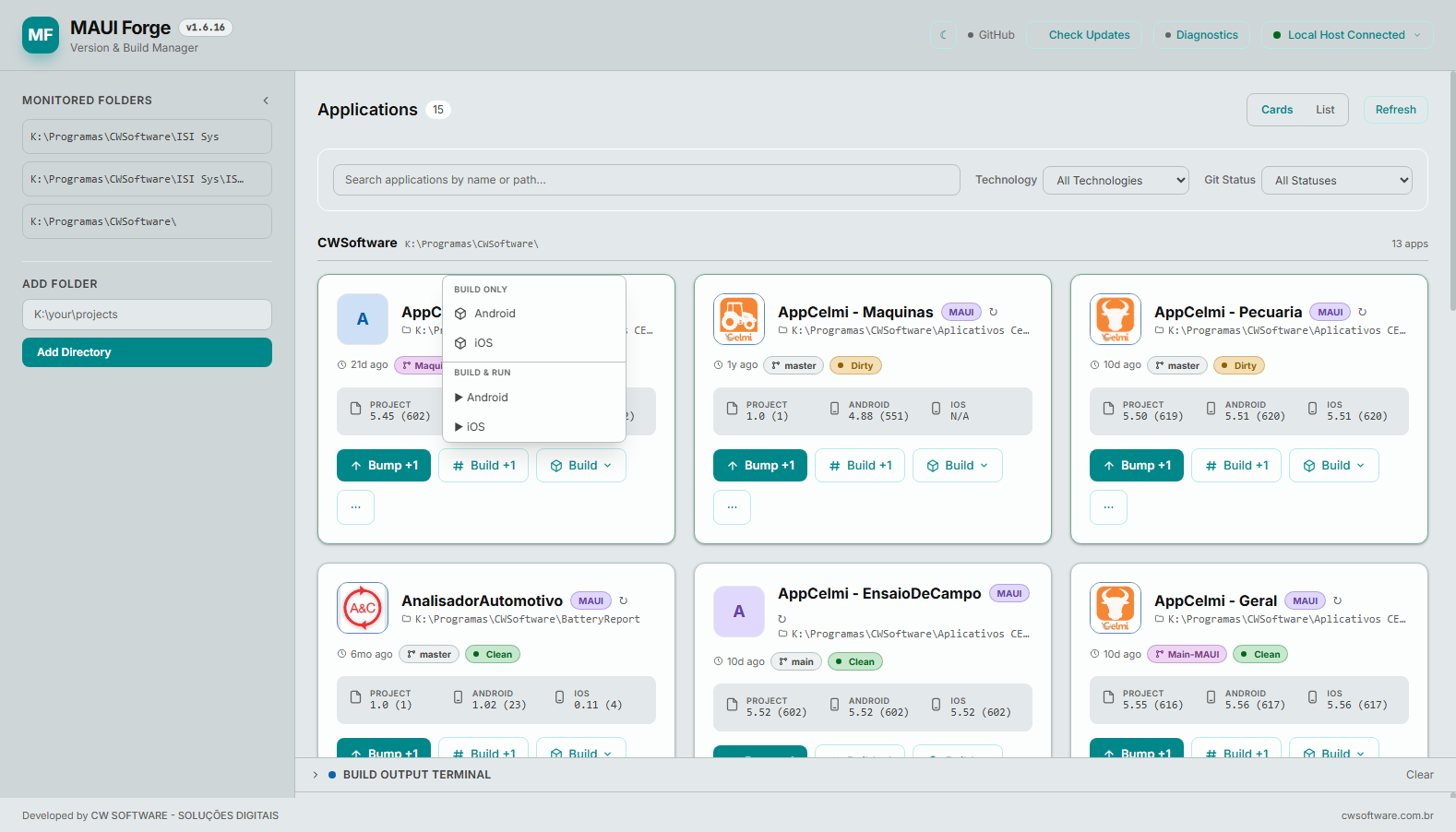
And build in general — not just on the remote Mac — has become much more direct. Just choose the platform and action from the menu:
 !
!
- Build Only — just compiles, useful for validating before committing.
- Build & Run — full build followed by deploy on the chosen device/emulator/simulator, with a selector for physical device, Android emulator, AVD, or iOS simulator.
- Release or Debug — chosen on the fly, without needing to edit any project configuration files.
- Live logs via SignalR, with a progress bar that tracks the stages (Build → Deploy → Launch) — without needing to switch to the terminal to know if it's stuck or not.
- Cancel build at any time, directly from the interface.
✅ Clean without fear
The cleaning menu has four levels — Quick, Android, iOS, Deep, and Nuclear — for when that stubborn build error only disappears after wiping everything.
Truly integrated Git
Forget switching between VS Code, the terminal, and GitHub Desktop just to know if an app is behind the remote. MAUI Forge automatically performs a fetch when opening each app and notifies you:
- How many commits you are ahead/behind the remote.
- If there are uncommitted changes.
- A summary of the diff before you decide to commit.
- AI-generated commit messages — with support for Claude CLI, Gemini CLI, local Ollama, or a heuristic ("Smart") mode that works without depending on any external API.
And when everything is ready, a Bump & Push button does the whole package: increments the version, commits with the formatted message, and pushes to the remote — all at once.
Everything MAUI Forge solves for you
- Automatic discovery of MAUI, WPF, Blazor, Class Library apps, and even Unity projects, with configurable search depth
- Version reading and writing in 5 different formats: Info.plist, AndroidManifest.xml, .csproj, AssemblyInfo.cs, and Unity's ProjectSettings.asset — without manual editing
- One-click version synchronization between iOS and Android
- Snapshot and undo of the last version change — because wrong bumps happen
- Build and deploy to physical device, emulator, or simulator, Android and iOS, in Release or Debug
- Server mode for iOS builds on a remote Mac, 100% controlled by the PC
- Release publishing: .apk / .aab on Android, archive + upload to App Store Connect on iOS
- Complete environment diagnostics: dotnet, git, ssh, xcrun, adb, emulator, and installed workloads

Comments
Have a question, or found an issue with the code? Drop a comment below — I read and reply to every one.